Enhance Blurry Document Photos with AI
Shaky, out-of-focus or low-resolution photo of a document? Scripily sharpens soft text and upscales small images so every word and number is easy to read again.
Free to sign up · Free auto enhance · JPG, PNG, WebP, TIFF and PDF
- Sharpen soft, blurry text
- Upscale low-res photos
- Free auto enhance
- Words never changed
See the difference
From guesswork to every digit clear
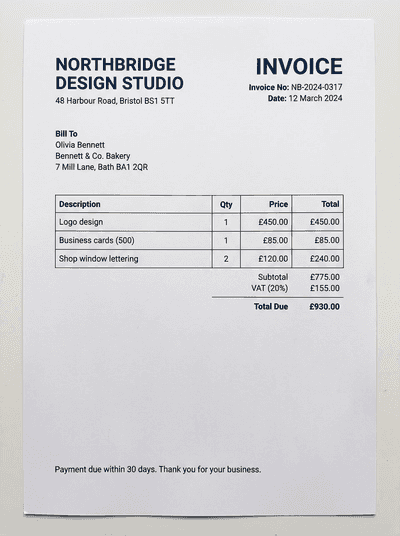
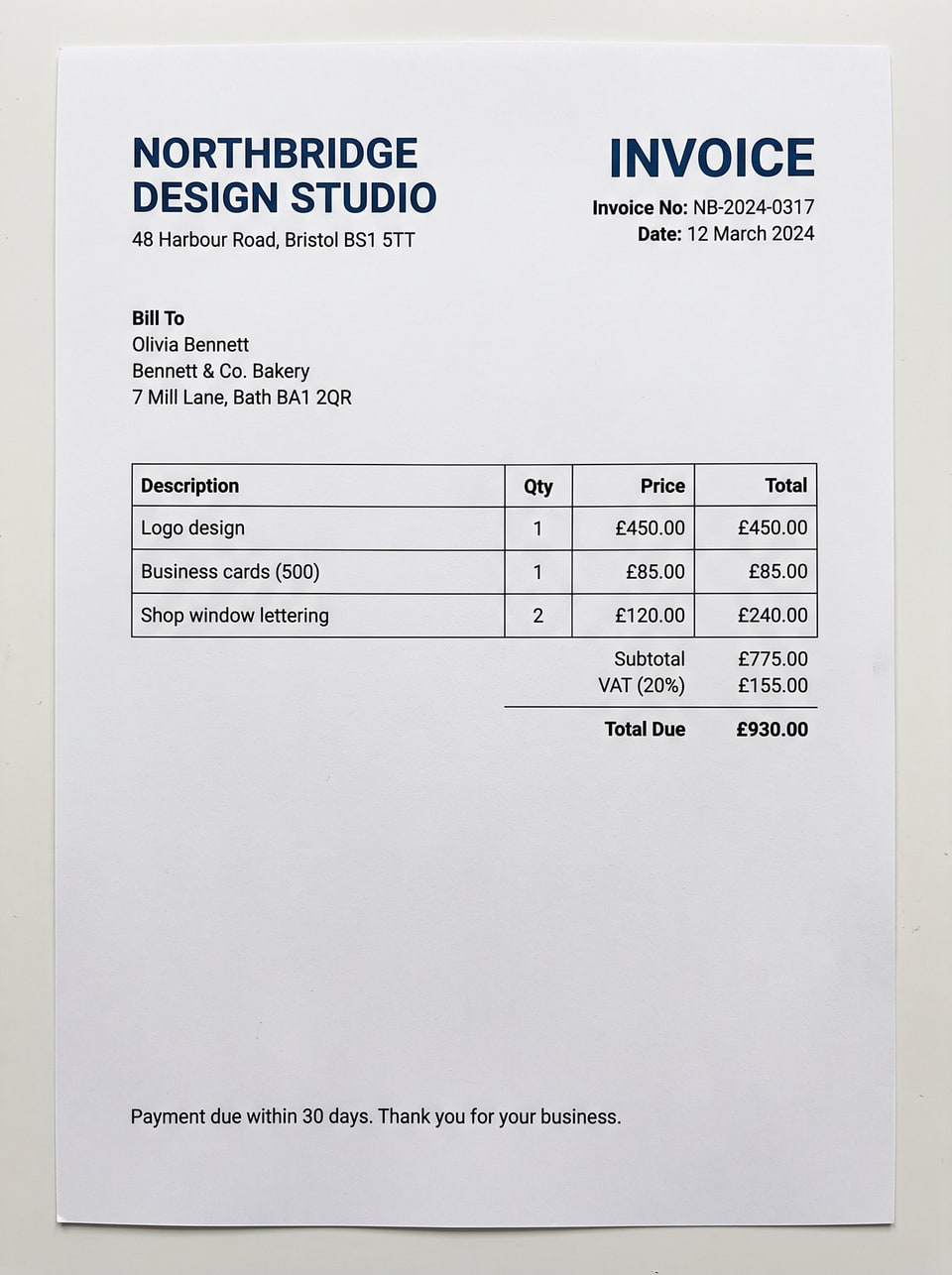
This invoice photo was small, shaky and compressed. After Sharpen blurry text and Upscale, the totals, dates and line items read clearly. Drag the slider.
- Sharp letter edges on every line
- Higher resolution for zoom and print
- Same words and numbers as the original
Try it here
Zoom in and judge for yourself
Switch between the original photo and the enhanced copy, pick an area and zoom up to 400%.
Version
Zoom
Look at
The original was a 400 × 536 px blurry photo. The enhanced copy is sharpened and upscaled to 960 × 1286 px.
Why it happens
Why document photos come out blurry
Knowing the cause helps you pick the right fix, and take a sharper photo next time.
Camera shake
A small hand movement while taking the photo smears every letter in the same direction.
Missed focus
The phone focused on the table or your fingers instead of the page.
Low light
Dim rooms mean slow shutter speeds and noisy, soft images.
Low-resolution scans
Scanners set to a low DPI save small images that turn blocky when you zoom in.
Compressed by chat apps
Forwarding a photo through messaging apps shrinks and compresses it every time.
Zoomed screenshots
Screenshots of a small part of the screen have too few pixels to read.
The tools
Three ways to fix a blurry document
Use one, or combine them. For a small, shaky photo, sharpen first and then upscale.
Sharpen blurry text
Rebuilds crisp letter edges on soft, out-of-focus or shaky photos at their current size.
Best for: Out-of-focus or shaky phone photos
Upscale
Makes a small or pixelated page larger and sharper, so text stays clear when you zoom in or print.
Best for: Small, low-resolution or blocky images
Auto enhance and Sharpen slider
Balances light and adds light sharpening. Fine-tune with the Sharpen slider and the Clean scan look.
Best for: Slightly soft photos that just need a lift
How it works
Enhance a blurry document in three steps
- 1
Upload the photo
A phone photo, scan, screenshot or PDF. JPG, PNG, WebP, TIFF or PDF.
- 2
Sharpen and upscale
Run Sharpen blurry text, then Upscale if the page is small. Or start with free Auto enhance.
- 3
Compare and download
Zoom in on the details, compare with the original and download the clear copy.
What you can enhance
Make any blurry document readable
- Receipts and invoices
- Handwritten notes
- Whiteboards and slides
- Book and magazine pages
- Contracts and forms
- Old letters and records
- Faxes and photocopies
- Screenshots
Guide
How to take a sharper photo of a document
AI can rescue a lot, but the sharper the photo you start with, the better the final copy. These habits take seconds.
Quick check: zoom in on your photo before you upload. If you can make out the letter shapes, Scripily can usually make them crisp.
- 1
Use soft, even light
Face a window or switch on a lamp. Avoid harsh shadows and glare on glossy paper.
- 2
Hold still, or rest your elbows
Brace against the table, and tap to focus on the text before taking the photo.
- 3
Fill the frame, straight on
Get close enough that the page fills the screen, held flat and parallel to the phone.
- 4
Send the original file
Share the photo as a file, not through chat apps that shrink and compress it.
Compare
Why not just use a sharpen filter?
Basic sharpen filters only add contrast to edges. On a truly blurry photo they make noise louder, not letters clearer.
| Capability | Scripily | Sharpen filters | General photo upscalers |
|---|---|---|---|
| Rebuilds blurry letter edges | |||
| Adds resolution to small images | |||
| Tuned for text and documents | |||
| Keeps the words and numbers unchanged | |||
| Restore, edit and read text in one place |
Sharp text reads better, for people and for OCR
Enhance first, then turn the page into editable, searchable text with fewer mistakes.
Words stay the same
Enhancing never rewrites the content.
Undo any step
Every change is saved as a version.
Compare anytime
Original, Result and Compare views.
Images and PDFs
Every page, downloadable as image or PDF.
FAQ
Questions about enhancing blurry documents
How do I fix a blurry photo of a document?
Upload the photo or scan to Scripily and run Sharpen blurry text to bring soft letter edges back into focus. If the photo is small or pixelated, run Upscale for a sharper, higher-resolution page. Compare with the original, then download the clear copy.
Can AI make blurry text readable?
Yes, in most cases. Sharpen blurry text rebuilds crisp letter edges on soft or out-of-focus scans, and Upscale adds resolution so small or pixelated text becomes clear. Text that is completely smeared beyond recognition cannot be recovered, so start from the sharpest photo you have.
What is the difference between Sharpen and Upscale?
Sharpen blurry text fixes soft, out-of-focus edges at the photo's current size. Upscale makes the page larger and sharper, which helps when the image is low resolution and turns blocky when you zoom in. For a blurry, small photo, use both: sharpen first, then upscale.
Is there a free way to sharpen a document photo?
Yes. Auto enhance, the Sharpen slider and the Clean scan look are free. They balance the light and add light sharpening, which is often enough for slightly soft photos. AI tools such as Sharpen blurry text and Upscale use points from your plan.
Does it work on handwriting?
Yes. It sharpens handwritten notes, letters and forms as well as printed text. For handwriting that is faint rather than blurry, Restore faded text and Recover handwriting give better results.
Will enhancing change what the document says?
No. Enhancing sharpens and upscales the existing text and image. It does not change the words or numbers on the page, and your original upload is kept, so you can compare or undo at any time.
What files can I enhance?
JPG, PNG, WebP and TIFF images and PDF files. Download the enhanced page as an image or PDF, or save it to your Scripily library.
How much does it cost?
Signing up is free, and Auto enhance, adjustments and looks are free. Upscale uses 40 points and Sharpen blurry text uses 120 points per page, and failed AI edits are refunded. Every plan, including the free plan, comes with monthly points.
Will a sharper photo improve text recognition?
Yes. Crisp, high-resolution text is much easier for OCR to read accurately. After enhancing, you can turn the page into editable text with Scripily's image to text and handwriting recognition tools.
Stop squinting at blurry documents
Upload the photo, sharpen and upscale it, and download a copy you can actually read.