Change the Date on a Document with AI
Event moved? Typo in a date? Update the date on your own flyers, invitations, schedules and documents in seconds. Scripily writes it in the same font, size and colour, so it blends right in.
For documents you own or are allowed to edit
- Any date format
- Same font, size and colour
- Printed or handwritten
- Compare and undo
See the difference
Same gala, next year. Same card.
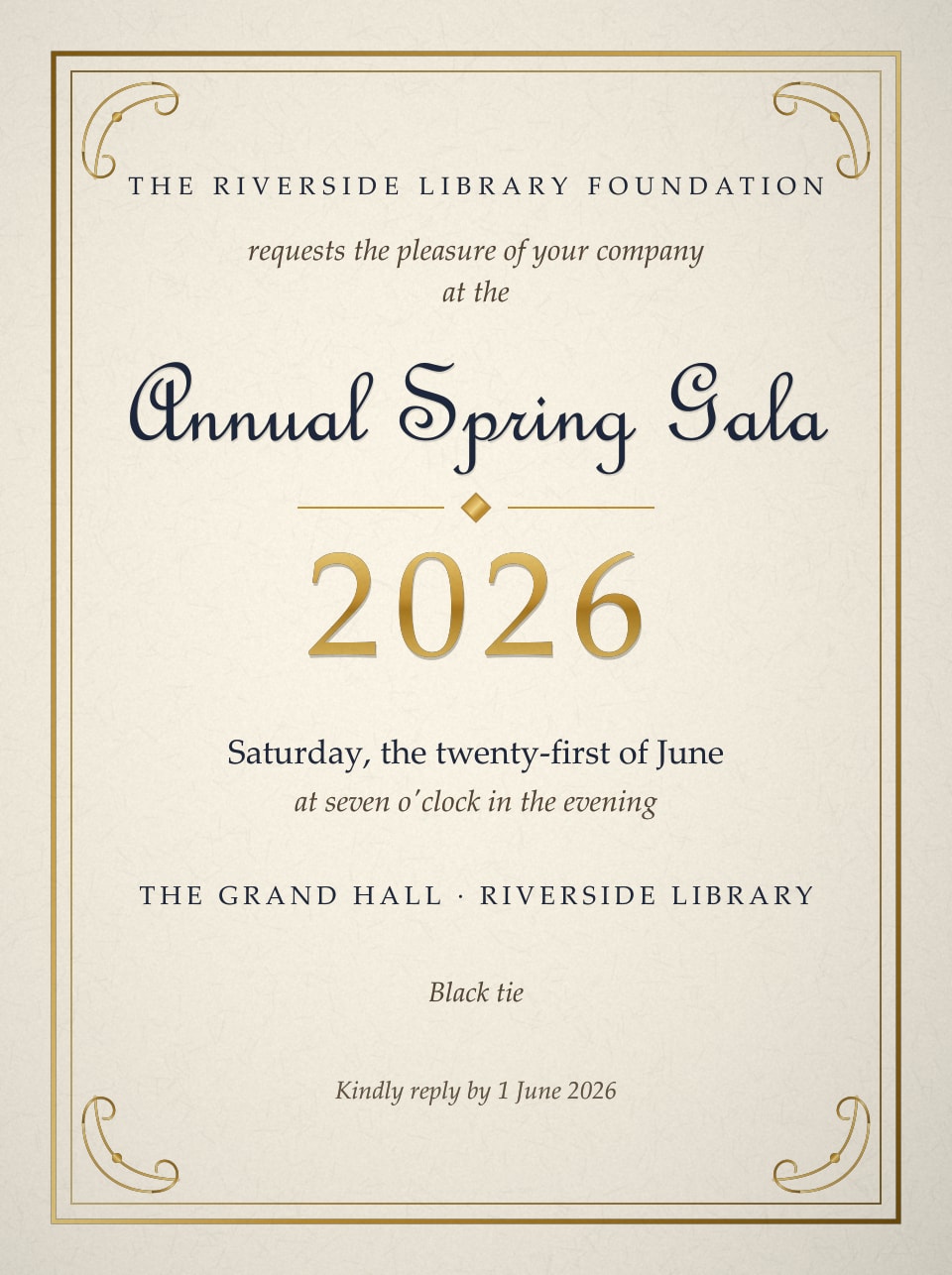
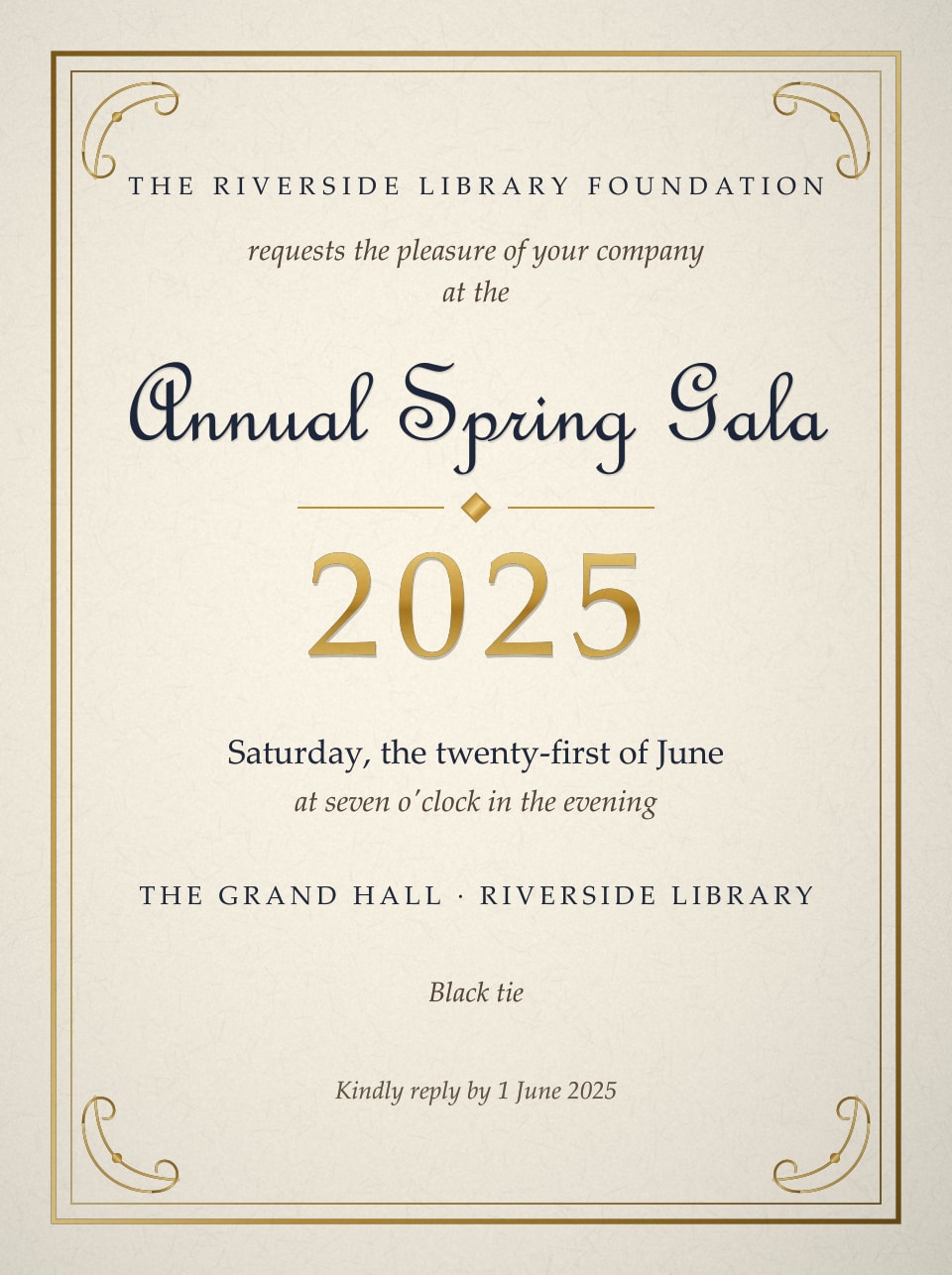
The foundation runs its spring gala every June. Instead of redesigning last year's invitation, only the dates were changed in Scripily: the big gold year and the small reply-by date at the bottom. Drag the slider to compare.
- Same classic serif numerals
- Same gold foil colour and shine
- Reply-by date updated in the same italic
Any format
Type the date the way it should look
Long or short, numbers or words, printed or handwritten. Scripily keeps the lettering. You choose the format.
Saturday 14 June 2025
Saturday 21 June 2025
06/14/2025
06/21/2025
SAT 14 JUN
SAT 21 JUN
14th of June
21st of June
2025-06-14
2025-06-21
June 14th, 2025
June 21st, 2025
Pick As typed, UPPERCASE, lowercase or Title Case to match the original exactly.
How it works
Change a date in three steps
Step 1
Upload your document
A photo, scan or PDF of your flyer, poster, invitation or schedule.
Step 2
Select the date
Click the highlighted line with the date, or draw a box around it.
Step 3
Type the new date
Write it exactly as it should appear. It is added in the same lettering, then compare and download.
Use cases
Good reasons to change a date
Most date changes are about plans that moved or a simple mistake on something you made yourself.
Rescheduled events
Moved the fair, gig or meeting? Update the date on the poster you already designed.
Reused flyers and posters
Run the same event again next year without rebuilding the artwork.
Invitations and save-the-dates
Fix a date on your own invitation or announcement before it goes out.
Class and meeting schedules
Update term dates and timetables on your own handouts and notices.
Menus and specials
Refresh the date on your own menus, specials boards and offers.
Newsletters and notices
Correct a date in a newsletter or notice you published yourself.
Typos in your own notes
Fix a wrong date in your own handwritten notes, diaries or letters.
Mock-ups and design
Try different dates on a design or mock-up without opening a design app.
Tips
For a date change nobody notices
- 1
Keep the same format
If the original says 14 June 2025, type 21 June 2025, not 21/06/25. Matching formats look most natural.
- 2
Check every mention
Dates often appear twice, in a deadline or footer. Change each one so the page stays consistent.
- 3
Select the whole date
Include the full date and a little space around it, so the new one fits the line.
- 4
Compare before you share
Drag the before and after slider and zoom in to check the edit, then download.
Reusing last year's card? Dates hide in more than one place. Here the year and the reply-by date both had to move.
Acceptable use
Change dates on what is yours to change
Scripily is for updating and correcting your own documents. Changing a date to mislead someone is not allowed and may be illegal.
Fine to edit
- Your own flyers, posters and invitations
- Your own schedules, menus and notices
- Typos in documents you wrote
- Design mock-ups and drafts
Never edit
- Receipts, invoices and tickets
- Medical, school or work notes
- Certificates, contracts and statements
- IDs and any official document
Need a corrected official document? Ask the organisation that issued it for a new one. An edited copy is never a replacement.
FAQ
Questions about changing a date with AI
How do I change the date on a document with AI?
Upload a photo, scan or PDF of your document to Scripily, click the line with the date or draw a box around it, choose Replace text and type the new date exactly as it should appear. Scripily writes it into the page in the same font, size and colour. Compare before and after, then download.
Will the new date match the original font?
Yes. Scripily studies the lettering around your selection and writes the new date to match it, for printed fonts and handwriting alike, so it sits naturally in the line.
Which date formats can I use?
Any format. Type the date exactly as you want it to appear, for example 21 June 2025, 06/21/2025, Sat 21 Jun or 21st June, and choose the letter case. Keeping the same format as the original gives the most natural result.
Can I change a date on a flyer, poster or invitation?
Yes. Rescheduled events, reused posters, save-the-dates and class schedules are some of the most common uses. If the date appears more than once, for example in a booking deadline, change each mention so the page stays consistent.
Can I change a handwritten date?
Yes. Select the handwritten date and type the new one, and it is written in the same hand. This is useful for correcting a mistake in your own notes or letters.
What file types are supported?
JPG, PNG and WebP images and PDF files. Each page of a PDF opens on its own, and you can download the edited page as an image or PDF.
How much does it cost?
Signing up is free, and finding and reading the text on a page is free. Each change uses 150 points from your plan, and failed changes are refunded. Every plan, including the free plan, comes with monthly points.
What am I not allowed to change?
Do not change dates on receipts, invoices, tickets, medical or school notes, certificates, contracts, bank statements, IDs or any official document, and never use an edit to mislead anyone. Only edit documents you own or have permission to change. An edited copy is never a replacement for a document reissued by the organisation that created it.
Plans changed? Change the date in seconds.
Upload your flyer, invitation or schedule, type the new date and download it in the original lettering.