Damaged Document Restoration in One Click
Remove coffee stains, water marks, foxing, dust and dirty edges from scanned documents. The paper, type and layout stay exactly as they were, so the page still looks original, just clean.
Free to sign up · Free presets · JPG, PNG and PDF
- Stains and rings lifted
- Foxing spots removed
- Original paper and type
- Original never touched
See it on real damage
Pick a type of damage and compare
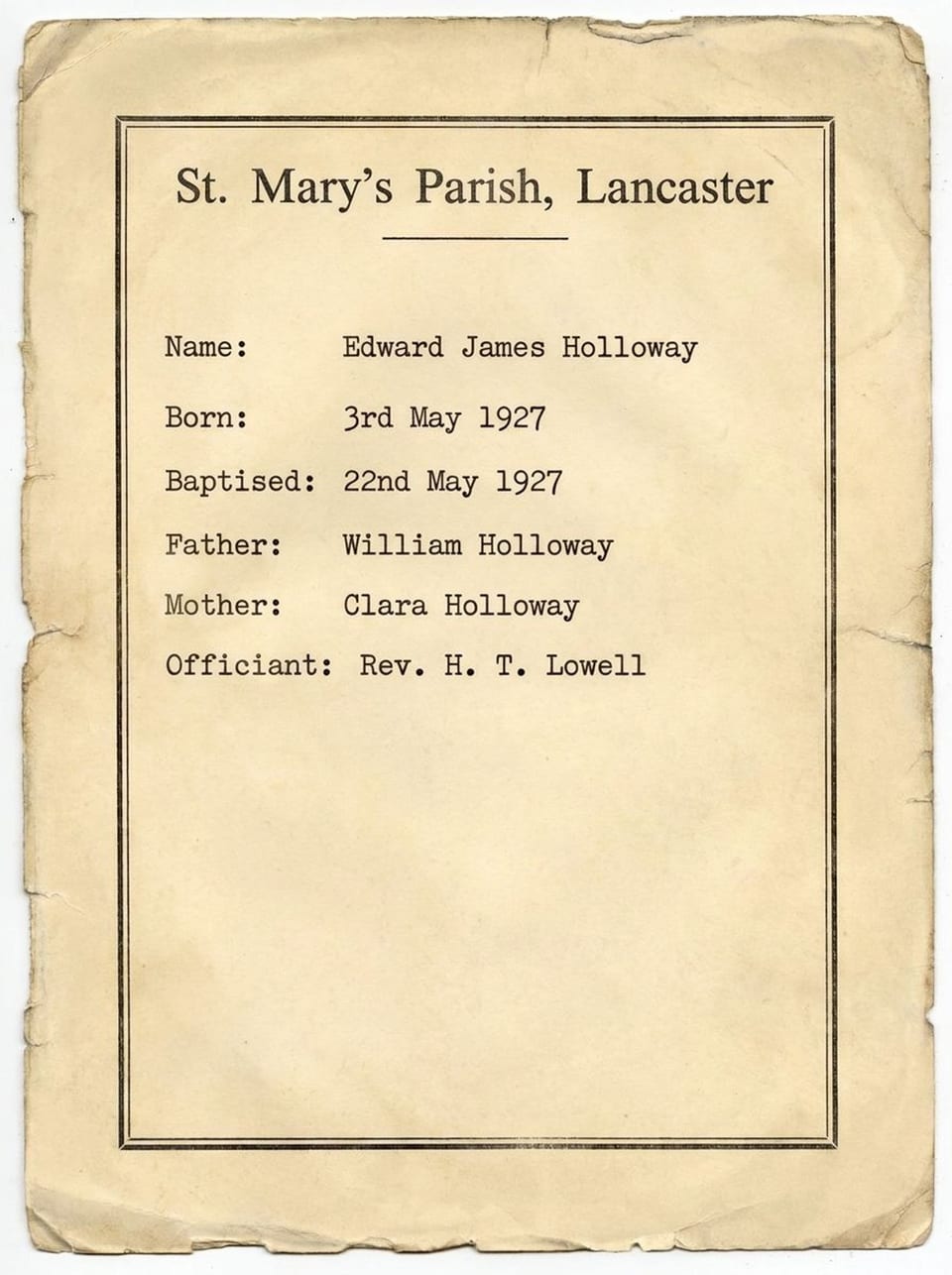
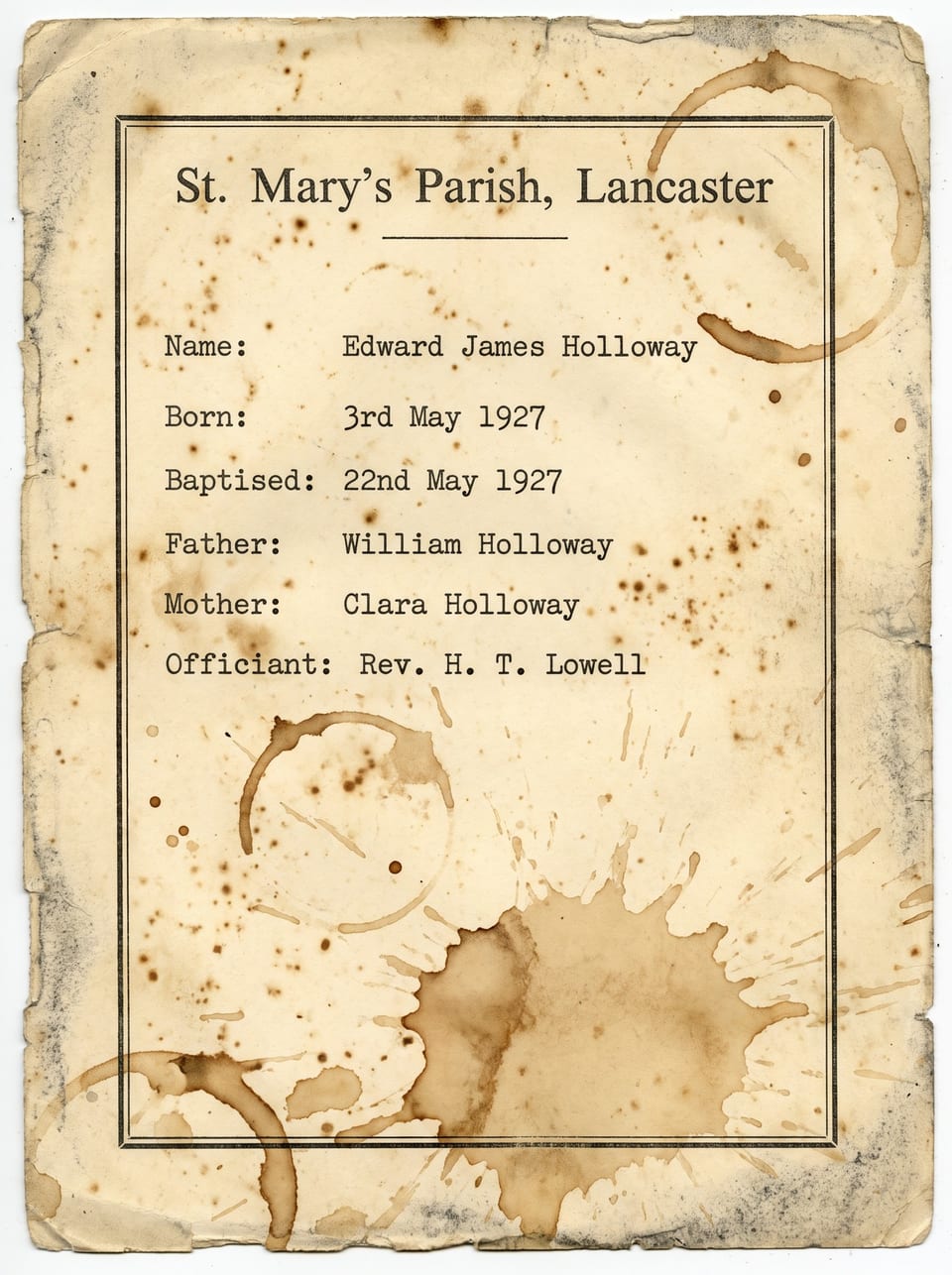
Every example comes from the same stained 1927 certificate and its restored result.
Cup rings and drips, gone
Brown rings left by cups and glasses are lifted off the paper, including where they cross the text and the printed border.
- Rings and drips removed
- Printed border kept sharp
- Paper tone unchanged
Drag the slider on the image to compare.
How it works
Restore a damaged document in three steps
Upload, click, download. Fine-tune only if you want to.
Step 1
Upload a page or a PDF
JPG, PNG or a whole PDF. Every page keeps its full resolution.
Step 2
Restore the whole page
One click cleans every stain and spot while keeping the paper tone and fonts.
Step 3
Fine-tune, compare and save
Fix single spots with the box or brush, compare before and after, then download or save.
Your choice
Three ways to fix a damaged page
Clean everything at once, target one kind of damage, or fix a single spot.
One-click restore
Cleans the whole page in one pass: stains, foxing, noise and bleed, with the original paper and fonts kept.
- Coffee and water stains
- Foxing spots
- Dust and scanner noise
- Ink bleed
- Dirty edges
Page tools
Run one targeted fix across the whole page when you only need one thing done.
Remove stainsCoffee, water rings, ink blots, dirt
Remove foxing & spotsBrown age spots and speckles
Remove dust & noiseScanner grain, dust, specks, scratches
Remove bleed-throughWriting showing through from the back
Clean backgroundEven, clean paper tone, ink untouched
Smooth folds & creasesFold lines, wrinkles, crumple marks
Area tools
Draw a box or brush over one spot and choose what should happen there. Nothing else changes.
- Restore area
- Remove stain
- Fill hole / tear
- Erase marks
- Fix text
Free looks
Finish the page your way, for free
After restoring, try a free preset: keep the original tone, go bright white for printing, or switch to black and white for a crisp copy.
Original result
White paper
Clean scan
Grayscale
Black & white
Sepia
Previews are approximate. Vintage, Vivid and Faded ink presets are also available.
Guide
Types of document damage and how to fix each one
Not sure which tool to use? Find the damage on your page below.
| Damage | What it looks like | How to fix it in Scripily |
|---|---|---|
| Coffee and water stains | Brown rings, splashes, tide marks | Remove stains, or box it and use Remove stain |
| Foxing | Rust-coloured spots and speckles | Remove foxing & spots |
| Dust and scanner noise | Grain, specks, fine scratches | Remove dust & noise |
| Ink bleed-through | Writing showing from the back | Remove bleed-through |
| Yellowed or uneven paper | Blotchy, dark or uneven tone | Clean background, or the free White paper preset |
| Folds and creases | Lines and wrinkles across the page | Smooth folds & creases |
| Tears, holes, mould, burns | Missing or broken paper | Deep Restoration |
| Faded ink or pencil | Pale or partly missing writing | Faded Text Restoration |
Use cases
Who restores damaged documents with Scripily
Family history
Clean stained certificates, letters and photos for the family archive.
Archives and libraries
Prepare clean reading and exhibition copies of stained collection items.
Legal and property files
Make stained deeds, contracts and records clear for reference.
Offices and businesses
Clean up coffee-stained or grubby scans before filing or sharing.
Researchers and students
Read stained primary sources without guessing around the marks.
Letters and postcards
Remove rings and grime from old correspondence and keepsakes.
Receipts and paperwork
Rescue damaged receipts, warranties and forms you need to keep.
Print and publishing
Get clean, print-ready pages for books, displays and reproductions.
At scale
One page or a whole archive
Batch Restore
Run up to 100 pages through the same steps with a ready-made pipeline such as Quick clean or Archive-ready, or build your own.
- Up to 100 pages per batch
- Straighten, restore, whiten and upscale
- Optional text recognition for every page
Restoration API
Restore damaged page images from your own app or workflow with a single API call.
POST /api/v1/restoreYour original stays untouched
Work happens on a scan or photo.
Undo any step
Every change is saved as a version.
Compare before and after
Original, Result and Compare views.
Full resolution
Every image and PDF page, full size.
Tips
Get the cleanest result
- 1
Start with the one-click restore
Use the repair tools only for what is left after it.
- 2
Box single blots
Use Remove stain in Areas when one blot sits on otherwise clean paper.
- 3
Try White paper for print
The free White paper preset gives a clean, print-ready copy.
- 4
Scan flat, in even light
Shadows and glare can look like stains. A flat, evenly lit scan works best.
FAQ
Questions about damaged document restoration
How do I restore a damaged document online?
Upload a photo or scan of the damaged page, or a PDF, to Scripily and press Restore document. Coffee and water stains, foxing spots, dust, scanner noise, ink bleed and dirty edges are cleaned in one pass while the paper tone, type and layout are kept. Then compare, fine-tune and download.
Can it remove coffee stains and water stains from a scanned document?
Yes. Stains, rings and splashes are lifted from the paper and the text underneath is kept. If one stain is left, draw a box around it and use Remove stain to clean only that area.
What is foxing, and can Scripily remove it?
Foxing is the brown spotting and speckling that appears on old paper over time. Scripily removes foxing spots across the whole page with one click, or with the Remove foxing & spots page tool.
Will the document still look like the original after cleaning?
Yes. Standard Restoration removes the damage but keeps the original paper colour, fonts, handwriting and layout, so the page looks like the same document, just clean. If you want bright white paper instead, use the free White paper preset.
What if my document is torn, mouldy or has missing pieces?
For heavy physical damage such as tears, holes, missing corners, mould, burns and deep creases, use Deep Restoration, which rebuilds lost paper and print. For writing that has faded, use Faded Text Restoration.
Can I fix just one part of the page?
Yes. Draw a box or brush over the area and choose Restore area, Remove stain, Fill hole / tear, Erase marks or Fix text. Only the marked area is changed.
How much does damaged document restoration cost?
Signing up and uploading are free, and the presets such as Clean scan, White paper, Grayscale and Black & white are free. A full-page restore uses 150 points, a page tool or a marked area uses 120 points, and failed restores are refunded. Every plan, including the free plan, includes monthly points.
What file types can I restore?
JPG and PNG images and PDF files. Every page keeps its full resolution, and you can download the restored page as an image or PDF, or save it to your library.
Can I restore many damaged documents at once?
Yes. Batch Restore runs up to 100 pages through the same steps, for example the Quick clean pipeline. Developers can also restore pages through the Scripily API.
Is my original document changed?
No. Scripily works on a photo or scan of your document, so the paper original is never touched. Every change is saved as a version, and you can undo or go back to the original image at any time.
Clean up your damaged documents today
Upload a stained or grubby page and get a clean copy that still looks like the original, in one click.