Whitfield → Ashworth
Replace text
Type new words and they are written in the page's own lettering. Choose as typed, UPPERCASE, lowercase or Title Case.
Change any word in a photo, scan or old document. Scripily rewrites it in the same handwriting, font and ink, so your edit blends right into the page.
Works on handwriting and print
See the difference
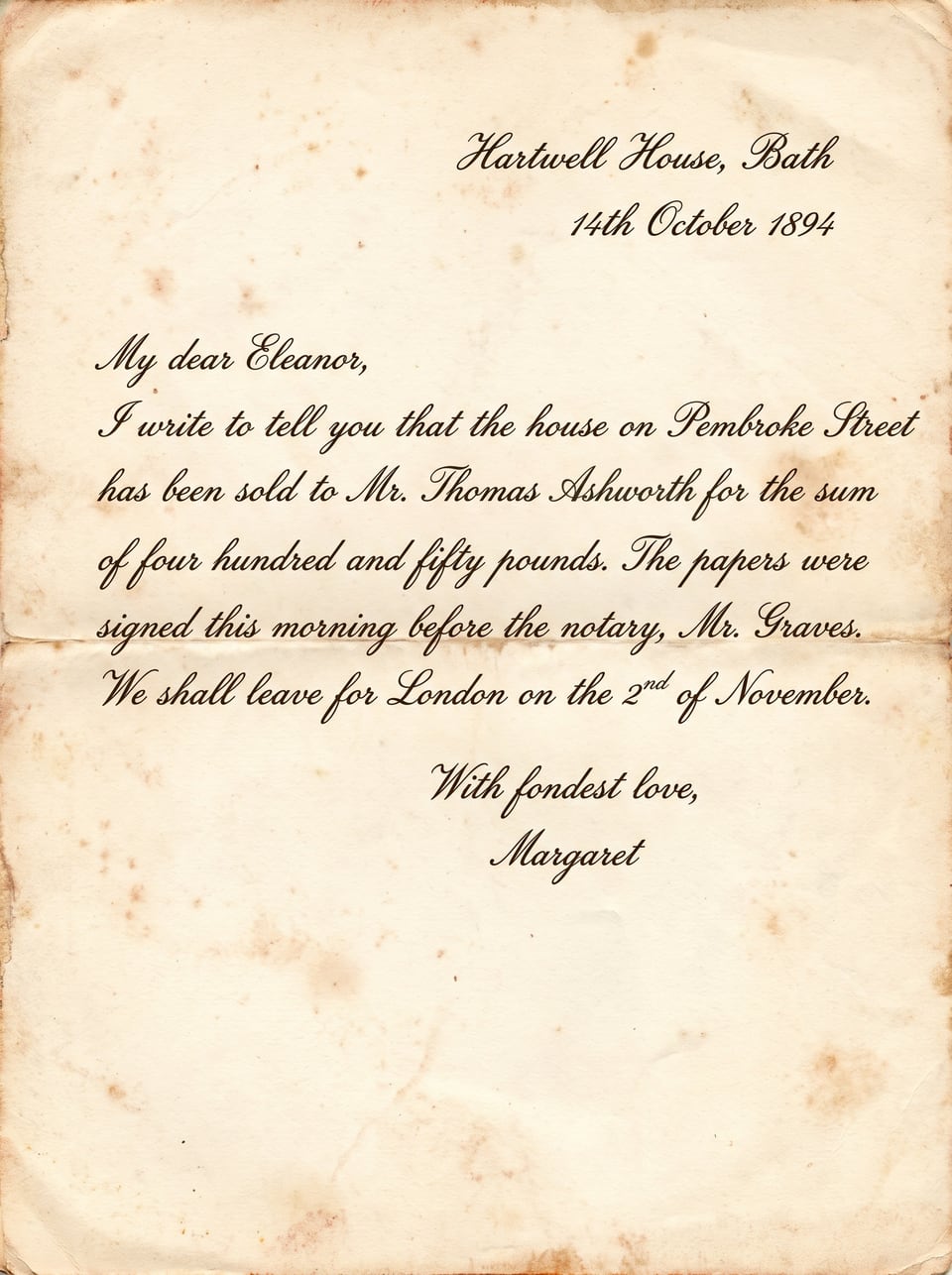
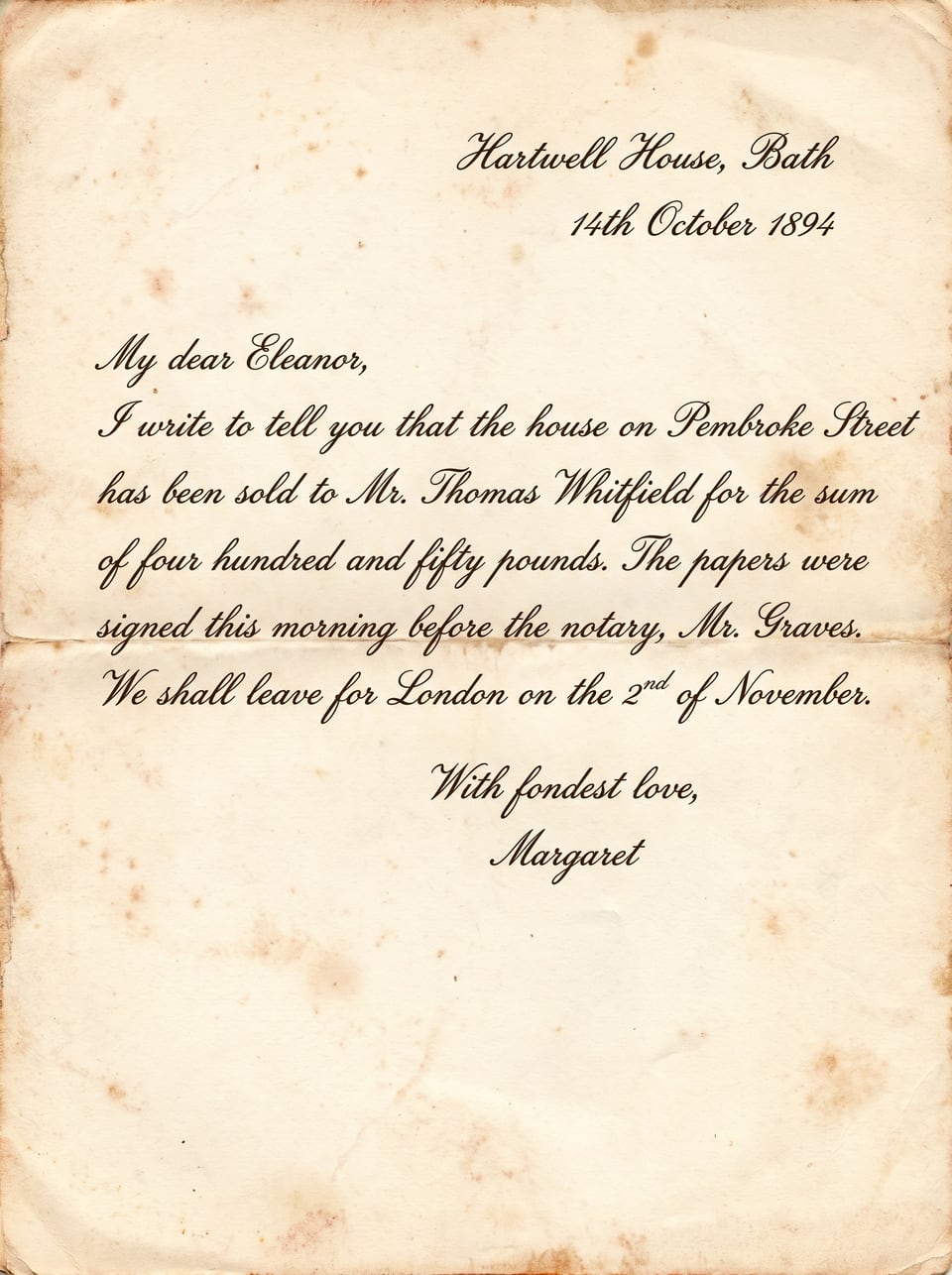
In this letter from 1894, the name Whitfield was changed to Ashworth. Drag the slider to compare. The new name uses the same cursive strokes, the same brown ink and sits on the same aged paper.
How it works
No layers, brushes or clone stamps. If you can type, you can edit the words in an image.
Add a photo, scan or PDF. Scripily finds every line of text so you can click one, or draw a box or freehand shape around any words.
Pick Replace, Remove or Restore. For a replacement, type the new words and choose the letter case. No prompts to write, just buttons.
Drag the slider to check the edit against the original. Undo if you want another try, then download an image or PDF, or save it to your library.
One editor, three tools
Whatever the words need, select them once and pick what should happen.
Whitfield → Ashworth
Type new words and they are written in the page's own lettering. Choose as typed, UPPERCASE, lowercase or Title Case.
Word cleared, paper filled in
Erase words from a photo and the background underneath is filled in with matching paper, grain and lighting, with no blank patch left behind.
Faded ink made readable
Keep the same words but bring faded, worn or broken letters back, so old documents are clear and easy to read again.
Features
Most tools put new text on top of a photo. Scripily writes it into the page, so the edit matches everything around it.
New words are written in the lettering already on the page: the same strokes, slant, size and ink colour, for cursive handwriting and printed type alike.
Every line on the page is detected and highlighted. Click the one you want instead of tracing it by hand.
Drag a box, or draw around text of any shape, such as a curved label or a word squeezed between lines.
Stains, grain, folds and shadows around your edit stay exactly as they were, so nothing looks flat or pasted on.
Each change becomes a new version. Undo, redo and jump back to the original at any time. Your upload is never overwritten.
Open up to 20 pages at once and move between them, editing only the pages that need it.
Export the edited page as an image or a PDF, or save it to your Scripily library next to the original.
Use cases
From a single typo in a scan to faded names in a family letter.
Correct a misspelt name, a wrong date or a typo in a scanned page without retyping or rescanning the whole thing.
Restore faded names and dates in old letters, registers and photos so the family record is readable again.
Make faded or broken lettering in digitised collections clear for readers, while keeping the page's original look.
Erase names, addresses or phone numbers from a photo before you share it, with the paper filled in naturally.
Change the details on your own forms, menus, flyers and signs from a photo instead of rebuilding them from scratch.
Edit the words on mock-ups, product shots, posters and social images while keeping the original typeface.
Clean up faded handwriting in sources and notes so they are easier to read, quote and study.
Fix the text on a sign, label, whiteboard or note in a photo you took, without any photo editing skills.
Compare
Changing text by hand means rebuilding letters and patching paper pixel by pixel. Scripily does that part for you.
| Capability | Scripily | Manual photo editing | Text overlay apps |
|---|---|---|---|
| Matches handwriting and fonts | |||
| Keeps paper texture and lighting | |||
| Finds the text automatically | |||
| Removes text and fills the background | |||
| Restores faded letters | |||
| Skills needed | None | Advanced | Basic |
| Typical time per edit | Seconds | 15 to 60 minutes | Minutes |
means possible, but only with skilled manual work.
Tips
A few small habits help the new words blend in perfectly, whether you are editing handwriting or printed text.
Use it responsibly. Only edit images you own or have permission to change, and never alter official, legal or identity documents to mislead anyone.
Sharp, evenly lit images give the AI the most detail about the lettering to copy.
Include the full word, and a little space around it, so the new text sits naturally in the line.
Replacements that are close in length to the original fit the space best. Longer edits work, but may look tighter.
Make several smaller edits rather than one large one. Each becomes its own version you can undo.
Not sure where to start? The editor includes sample documents, so you can try a change before uploading your own.
FAQ
Upload your photo or scan to Scripily, then click a highlighted line or draw a box around the words you want to change. Choose Replace text, type the new words and press Change text. Scripily writes the new words into the image in the same lettering, and you can compare before and after, then download the result.
Yes. Scripily studies the lettering, ink colour, size and slant of the text around your selection and writes the new words to match it. It works on handwriting and cursive as well as printed and typed text, so the edit blends into the page instead of looking pasted on.
Yes. Choose Remove text and Scripily clears the words and fills in the paper or background underneath, keeping its texture, so there is no blank patch where the text used to be.
Yes. Restore faded text keeps the same words but makes faded, worn or broken letters clear and readable again. It is useful for old letters, records and documents where the ink has faded over time.
You can upload JPG, PNG and WebP images, as well as PDF files. Each page of a PDF opens as its own page in the editor, up to 20 pages at a time, and you can also pick documents you have already saved in your Scripily library.
Yes. Every change is kept as a version. You can undo and redo changes, compare any version with the original using the before and after slider, and download only the version you are happy with. Your original image is never overwritten.
When you are happy with the change, download it as an image or as a PDF, or save it to your Scripily library next to the original so you can find both later.
Signing up is free. Finding the text on a page and reading it are free. Each change you apply uses 150 points from your plan, and if a change fails the points are returned automatically. See the pricing page for how many points each plan includes.
No. There are no layers, brushes or clone stamps. You select the words, type what they should say and Scripily does the rest. Most edits take a few clicks.
Only edit images and documents you own or have permission to change. Do not use Scripily to alter official, legal, financial or identity documents in order to mislead anyone.
Upload an image, type the new words and download an edit that matches the original handwriting or font.